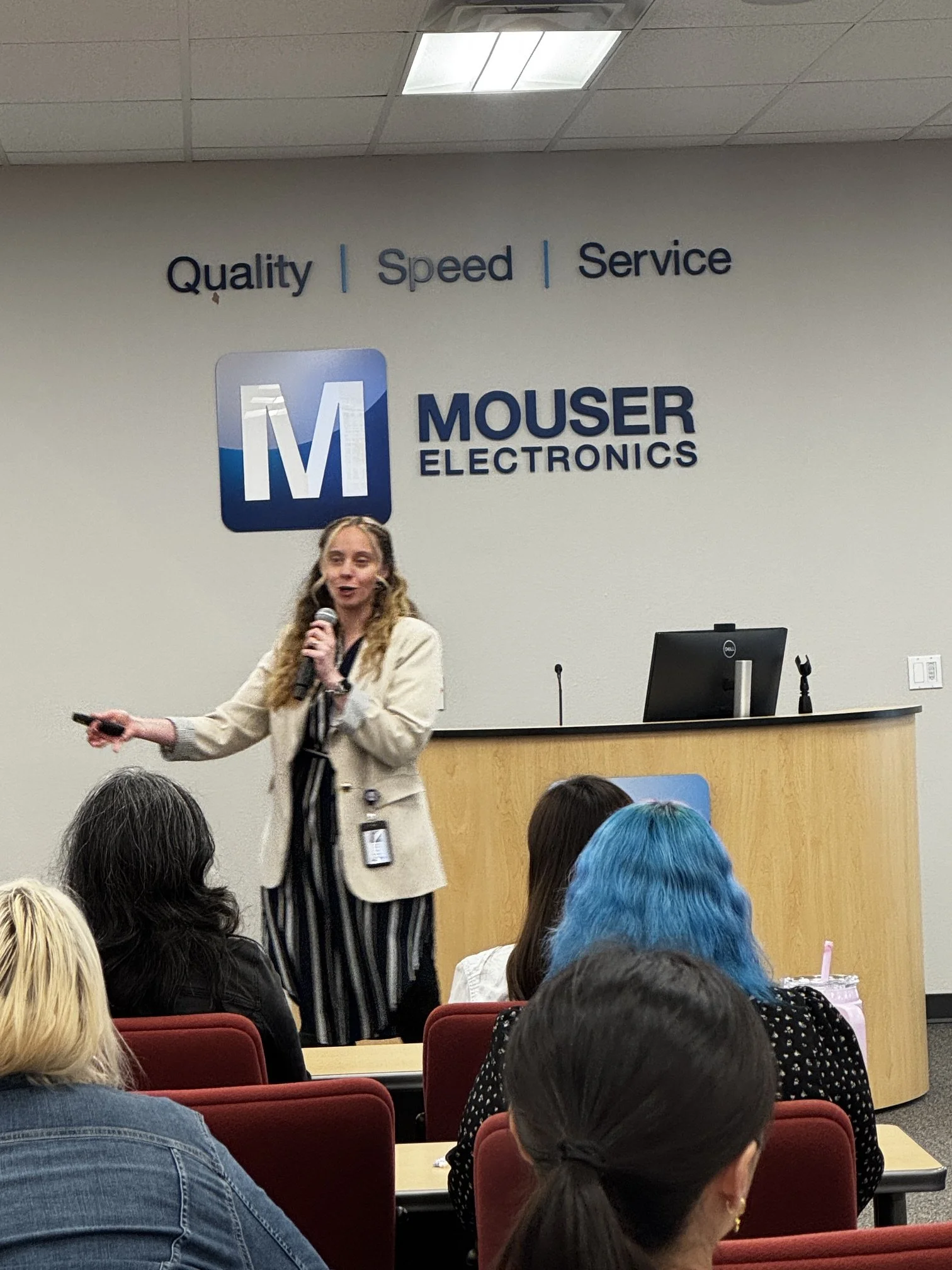
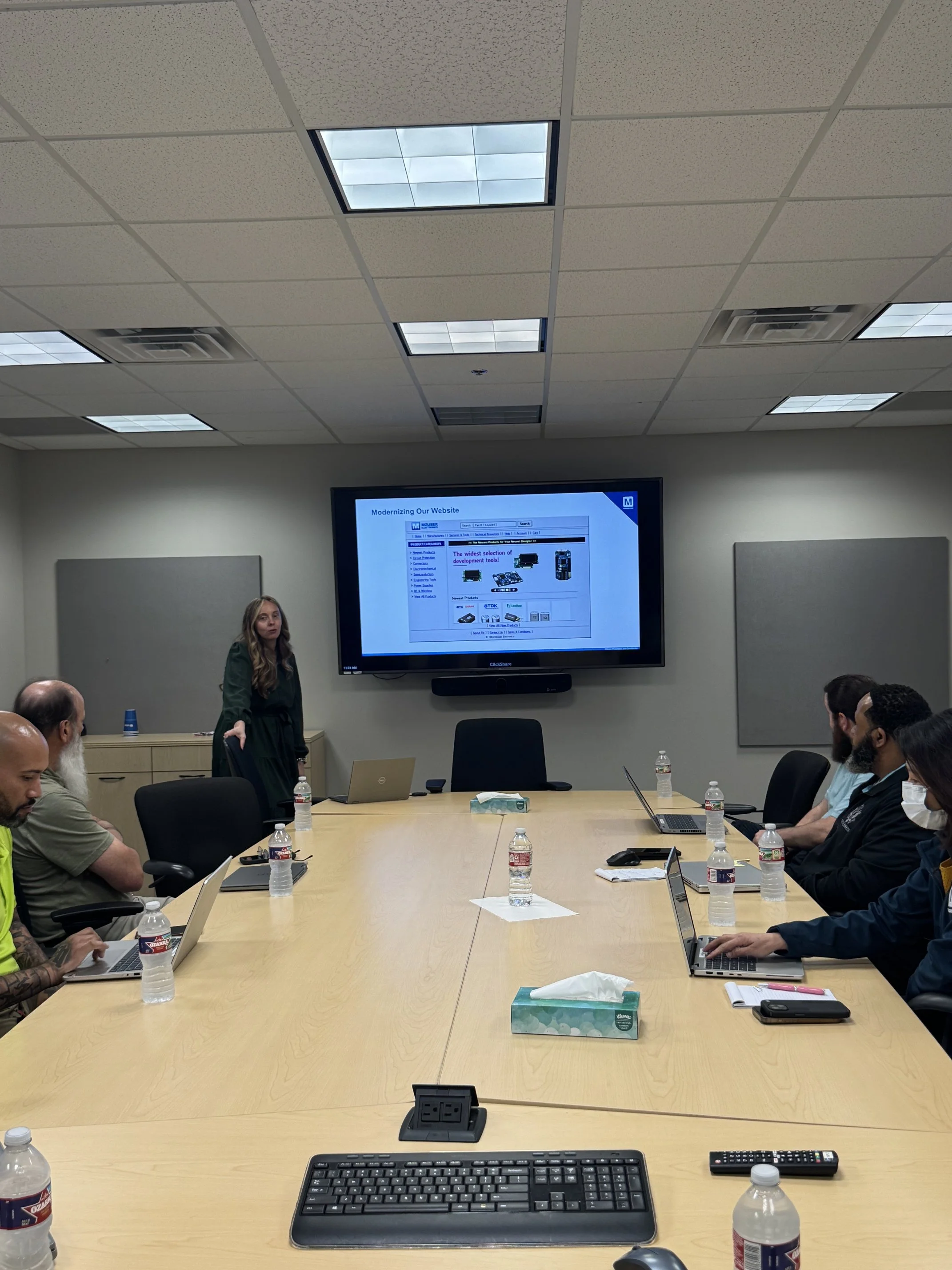
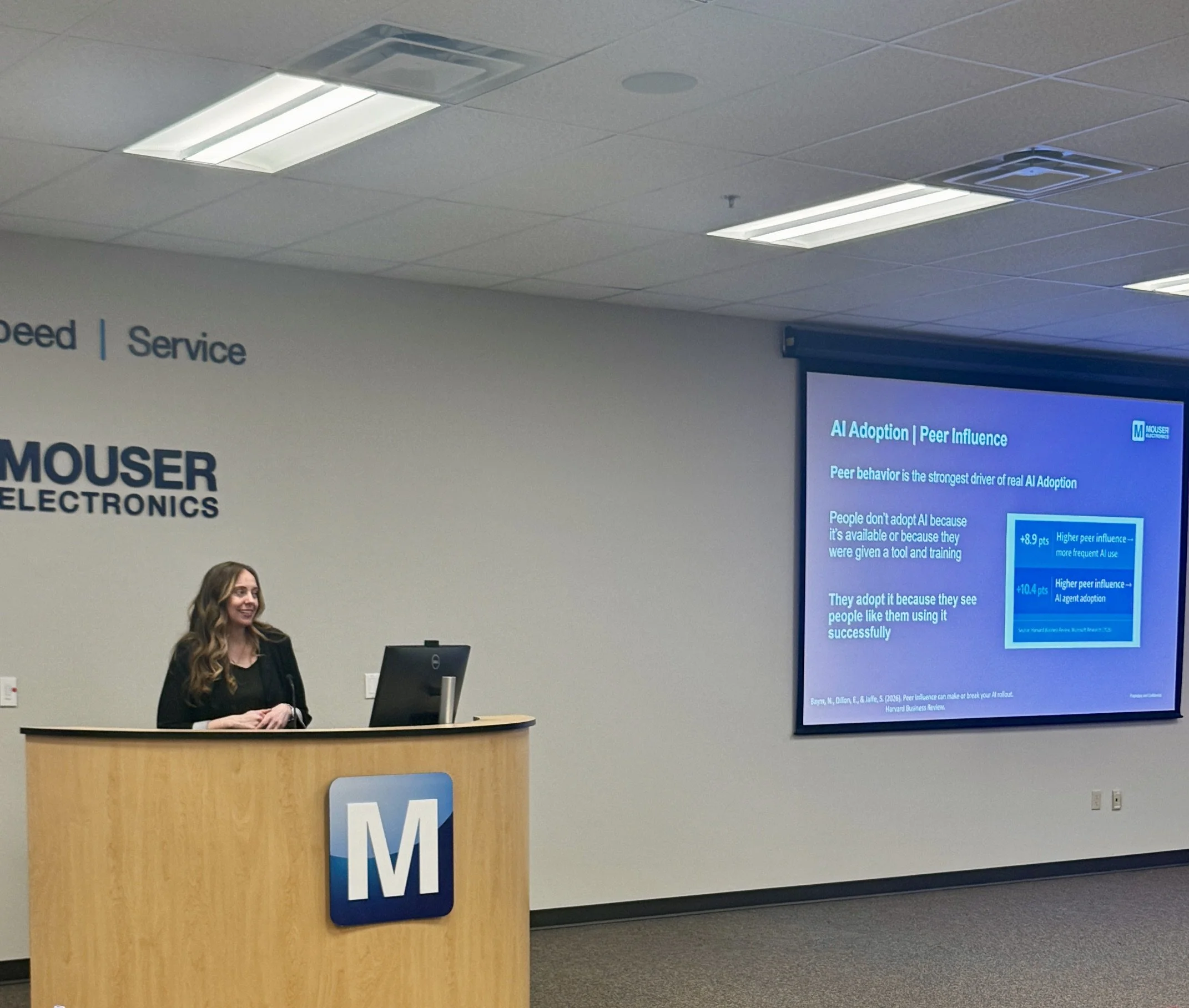
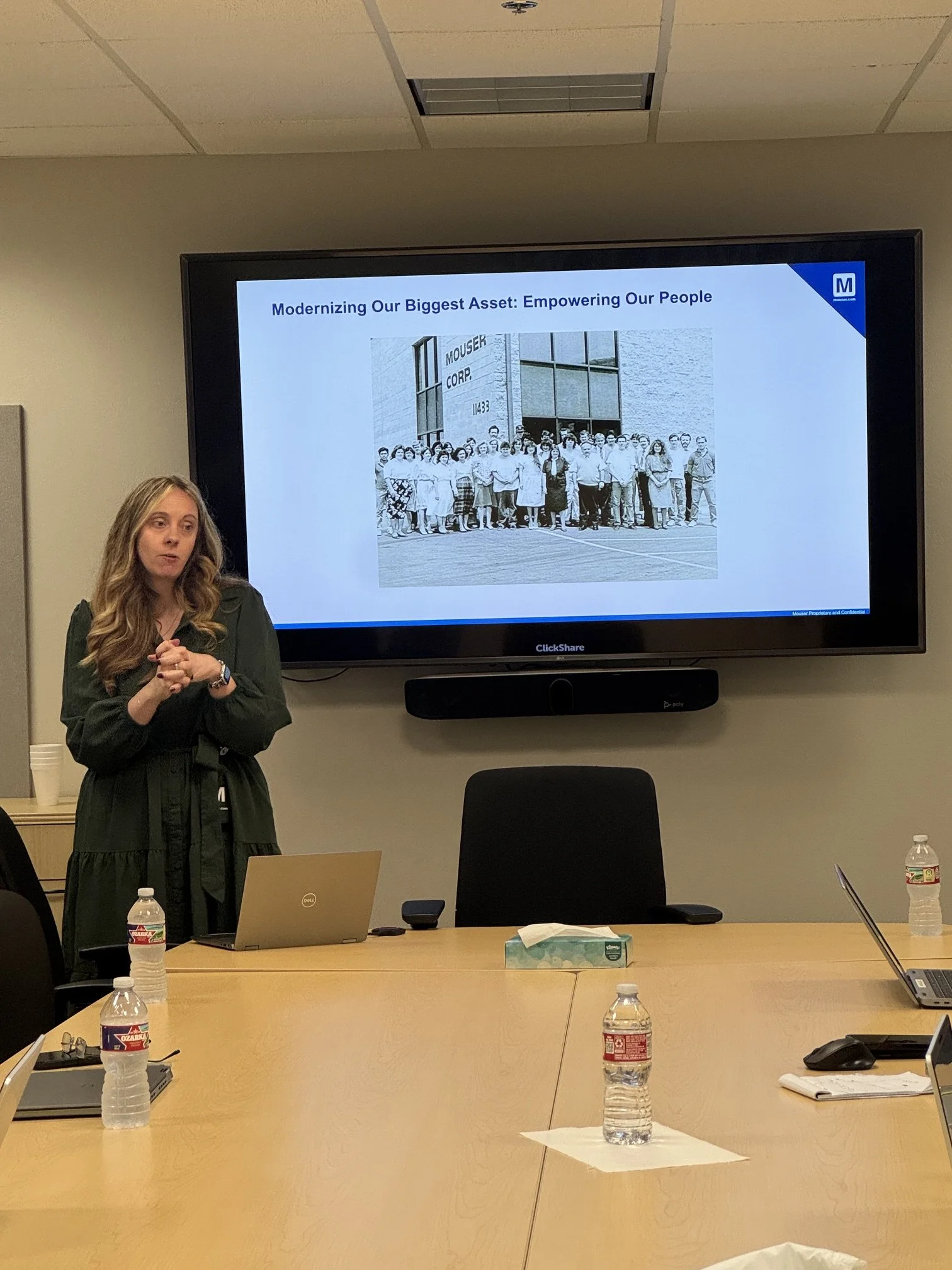
Facilitated multiple department trainings on AI and getting started with the basics of prompting.
This is a workshop schedule I created to help give employees an opportunity to foster AI skills and a culture of learning.
AI WORKSHOP SCHEDULE
Tuesday & Thursday · 4 Sessions/Day · 45 Minutes Each Each course rotates one slot every session pair so attendees can catch any course at a time that works for them.
TIME SLOTS
Slot 1 — 8:30 to 9:15 AM
Slot 2 — 9:30 to 10:15 AM
— Lunch Break —
Slot 3 — 12:00 to 12:45 PM
Slot 4 — 1:00 to 1:45 PM
WEEK 1
Tuesday
8:30–9:15 — Prompting Basics
9:30–10:15 — AI Exhaustion
12:00–12:45 — AI Evaluation
1:00–1:45 — Power Automate
Thursday
8:30–9:15 — Power Automate
9:30–10:15 — Prompting Basics
12:00–12:45 — AI Exhaustion
1:00–1:45 — AI Evaluation
WEEK 2
Tuesday
8:30–9:15 — AI Evaluation
9:30–10:15 — Power Automate
12:00–12:45 — Prompting Basics
1:00–1:45 — AI Exhaustion
Thursday
8:30–9:15 — AI Exhaustion
9:30–10:15 — AI Evaluation
12:00–12:45 — Power Automate
1:00–1:45 — Prompting Basics
After Week 2, every course has appeared in every time slot. Repeat the cycle with refined v2 versions of each workshop.
Here's everything in plain text:
AI WORKSHOP SCHEDULE
Tuesday & Thursday · 4 Sessions/Day · 45 Minutes Each Each course rotates one slot every session pair so attendees can catch any course at a time that works for them.
TIME SLOTS
Slot 1 — 8:30 to 9:15 AM
Slot 2 — 9:30 to 10:15 AM
— Lunch Break —
Slot 3 — 12:00 to 12:45 PM
Slot 4 — 1:00 to 1:45 PM
WEEK 1
Tuesday
8:30–9:15 — Prompting Basics
9:30–10:15 — AI Exhaustion
12:00–12:45 — AI Evaluation
1:00–1:45 — Power Automate
Thursday
8:30–9:15 — Power Automate
9:30–10:15 — Prompting Basics
12:00–12:45 — AI Exhaustion
1:00–1:45 — AI Evaluation
WEEK 2
Tuesday
8:30–9:15 — AI Evaluation
9:30–10:15 — Power Automate
12:00–12:45 — Prompting Basics
1:00–1:45 — AI Exhaustion
Thursday
8:30–9:15 — AI Exhaustion
9:30–10:15 — AI Evaluation
12:00–12:45 — Power Automate
1:00–1:45 — Prompting Basics
After Week 2, every course has appeared in every time slot. Repeat the cycle with refined v2 versions of each workshop.
WORKSHOP OUTLINES
WORKSHOP 1 — PROMPTING BASICS
"Most people are using AI like a search engine. This workshop changes that." Format: Hands-on | Level: Beginner–Intermediate
Learning Goals
Understand the 4-ingredient prompt framework
Rewrite a vague prompt into a specific, structured one
See immediate output quality improvement
Leave with a reusable mental model
SECTION 1 — The Hook: "Bad Prompt, Good Prompt" (0:00–0:05)
Open by asking AI the same question two ways. First: "Write me an email." Second: "You are a senior project manager. Write a concise, professional email to a vendor who missed a deadline, keeping the tone firm but collaborative. 3 paragraphs max." Show both outputs side by side — don't explain yet. Let the room react. Then ask: "What's different?" Collect 2–3 answers and write them on the board. Use their words for the rest of the session.
SECTION 2 — Core Framework: The 4 Ingredients (0:05–0:20)
Persona — Who should the AI be? "Act as a..." sets tone, vocabulary, and expertise. Show three quick examples: expert, coach, skeptic.
Context — What does the AI need to know? Background, constraints, audience, prior work. The more relevant context, the better the output. AI can't read your mind.
Format — How should it respond? Bullet list, table, paragraph, numbered steps. Explicitly stating format saves editing time.
Constraints — What should it avoid? Word limits, tone guardrails, things to exclude. "Don't use jargon." "Keep it under 100 words." "No bullet points."
Demo: Build a prompt live in front of the room, adding each ingredient one at a time and running it after each addition. Show how the output improves with every layer.
SECTION 3 — Live Rewrite Activity (0:20–0:35)
Show 3 weak prompts on screen: "Summarize this." / "Help me with my presentation." / "Write something for the newsletter." Pairs or small groups pick one and rewrite it using the 4-ingredient framework. Give 5 minutes — encourage them to run it live in whatever AI tool they use. Then share out. Pick 2 volunteers. Notice what's different. Celebrate specificity.
Facilitator tip: Ask "Which ingredient made the biggest difference for you?" This primes the feedback form and creates a memorable takeaway.
SECTION 4 — Try It + Wrap Up (0:35–0:45)
Individual practice: everyone opens their AI tool and applies the framework to something they actually need. 4 minutes of quiet work. Close with: "A great prompt is a conversation starter, not a command." Then run the feedback form.
You'll Need
Access to an AI tool (Claude, Copilot, ChatGPT)
Printed or projected "weak prompts" sheet
Whiteboard or sticky notes for group answers
QR code to feedback form
Feedback Questions
Which of the 4 ingredients was most new to you?
What's one thing that still feels unclear?
What real task will you try this on first?
WORKSHOP 2 — AI EXHAUSTION
"We were promised a tool that saves time. So why does it feel like more work?" Format: Discussion-heavy | Level: All levels
Learning Goals
Name and normalize AI exhaustion
Identify personal patterns causing friction
Apply a 3-question "worth it" test
Leave with 2 concrete decisions about AI use
SECTION 1 — The Hook: "Raise Your Hand" (0:00–0:05)
Ask the room a series of fast yes/no questions — raise your hand if yes. "You've felt pressure to use AI even when it wasn't helpful." "You've spent more time fixing AI output than just doing it yourself." "You've felt guilty for not using AI." After the hands go up, name it: "That feeling has a name. It's AI exhaustion." Normalize it immediately. This is a room full of people who've felt this and never said it out loud.
SECTION 2 — What Causes It: 4 Patterns (0:05–0:20)
The Revision Loop — prompting, fixing, prompting, fixing, giving up. When the iteration cost exceeds the value of the output. Most common in creative and nuanced tasks.
Decision Fatigue — too many tools, too many choices, no clear default. When the AI ecosystem itself becomes the problem. Show a "tool sprawl" image: 14 tools and no one knows which to use.
Identity Anxiety — "Am I still needed if AI does this?" Emotional, real, and worth naming out loud. This is where the room gets honest.
Social Pressure — using AI because others expect it, not because it actually helps. The "you should be using AI for that" moment in professional settings.
Discussion: turn to a neighbor and share which of these four you've experienced most. 2 minutes, then share a few out loud with the group.
SECTION 3 — The "Worth It" Framework (0:20–0:35)
Introduce the 3-question test to run before reaching for AI: Is this task repeatable or one-off? Is good enough acceptable, or does this need to sound like me? Do I have 3 minutes to prompt well, or will I just skim-fix bad output?
Show a decision map — not a rules list, a judgment tool. High-volume and low-nuance tasks: yes, use AI. High-stakes and high-nuance tasks: maybe not.
Activity: everyone writes down 2 tasks they'll keep doing themselves, and 2 they'll hand off to AI more intentionally. Share one of each with the group.
SECTION 4 — Recovery & Boundaries (0:35–0:45)
Three practical recovery habits: set one "no AI" task per day to stay sharp, batch your AI use instead of reaching for it constantly, and give yourself permission to just do something yourself. Close with: "AI is a tool, not a standard. You get to decide when it's worth it." Then run the feedback form.
You'll Need
"AI Tool Sprawl" slide or image
Decision map handout (printed or digital)
Index cards for the keep/hand-off activity
Relaxed room setup — this is a conversation, not a lecture
Feedback Questions
Which exhaustion pattern felt most familiar?
What's one task you decided to protect from AI?
Did this change how you think about AI pressure at work?
WORKSHOP 3 — AI EVALUATION
"Knowing how to use AI is one skill. Knowing when to trust it is another." Format: Critical thinking | Level: Intermediate
Learning Goals
Identify 5 red flags in AI output
Apply the REACT rubric to grade outputs
Match verification effort to output stakes
Leave with a portable evaluation tool
SECTION 1 — The Hook: "Spot the Lie" (0:00–0:05)
Show 3 AI outputs on screen. One contains a confident error — a fake statistic, a plausible but wrong historical fact, or a made-up citation. Don't tell them which one. Ask: "Which do you trust least, and why?" The point: if you can't tell without checking, you need a system for checking.
SECTION 2 — The 5 Red Flags of AI Output (0:05–0:20)
Confident vagueness — sounds authoritative but says nothing specific. "Research shows that..." — which research? Teach them to ask where the source is.
Hallucinated specifics — dates, names, and citations that don't exist. Demo this live: ask AI for 3 citations on a niche topic, then Google one on screen. High drama, high lesson.
Sycophantic agreement — AI agrees with whatever you say. Test live: tell AI a wrong fact and watch whether it corrects you or goes along. This is especially dangerous in evaluation tasks.
Training data bias — AI reflects what was most common in its training, not necessarily what's most true or representative. Ask it to describe "a doctor" and discuss whose image gets conjured.
Stale information — AI knowledge has a cutoff date. Ask about something recent, watch it hedge or get it wrong. Reinforce: always verify time-sensitive facts independently.
SECTION 3 — Build a Rubric Together (0:20–0:35)
Introduce the REACT rubric for grading AI output: Relevant, Evidence-based, Accurate, Clear, Trustworthy. Score each dimension 1 to 3. A total of 15 means excellent output.
Small groups grade 2 real AI outputs using REACT. Provide printed outputs — give each group a different topic. 6 minutes, then compare scores across groups. Debrief by asking where groups disagreed and why. The disagreement is the lesson — evaluation is judgment, not just checking boxes.
Handout: provide a REACT rubric card they keep. One side has the rubric, the other side lists the 5 red flags.
SECTION 4 — When to Verify vs. When to Trust (0:35–0:45)
Introduce three risk tiers: low stakes (internal draft — light check is fine), medium stakes (client-facing — verify key claims), high stakes (factual, legal, or financial — verify everything). Match verification effort to the stakes involved. Close with: "AI is a first draft, not a final answer. Your judgment is the last step." Then run the feedback form.
You'll Need
3 pre-selected AI outputs, one with a confident error
Printed REACT rubric cards (one per person)
Live AI access for the hallucination demo
2 grading outputs per table group
Feedback Questions
Which red flag surprised you most?
How will you use the REACT rubric at work?
What type of output will you now verify more carefully?
WORKSHOP 4 — AUTOMATION WITH POWER AUTOMATE
"Every repetitive task you do manually is a workflow waiting to be built." Format: Live build | Level: Beginner–Intermediate
Learning Goals
Understand the Trigger → Action → Condition model
Watch a real flow built and run live
Find one template relevant to their own work
Estimate the time saved per week
SECTION 1 — The Hook: "The Monday Morning Task" (0:00–0:05)
Ask: "What's one thing you do every single week that feels like a waste of your brain?" Collect answers. Common hits: copying data between systems, sending status update emails, filing attachments, forwarding reports. Pick one from the room and say: "Let's automate that today." Frame it as: this is solvable, right now.
SECTION 2 — How Power Automate Works: The 3-Part Model (0:05–0:15)
Trigger — What starts the flow? An email arrives. A form is submitted. A file is added. A schedule hits. Every flow begins with one thing that happens.
Actions — What happens next? Send an email, create a task, update a spreadsheet, post to Teams, generate a document. Actions are the work the flow does for you.
Conditions — What if? If the form says "urgent," route it differently. If the amount is over $500, add an approval step. Conditions make flows smart.
Visual aid: show a simple flow diagram. Email arrives → check subject for "Invoice" → if yes, save attachment to SharePoint and notify the team in Teams. Simple, recognizable, and exciting to people who do this manually today.
SECTION 3 — Live Build: A Real Flow in 15 Minutes (0:15–0:30)
Build this flow live: when a form is submitted, send a confirmation email and create a Planner task. This hits three common pain points at once — forms, email, and task tracking. Everyone in the room will recognize it.
Narrate every click. Say "I'm clicking here because..." at each step. Demystify the interface. They need to feel like they could do this themselves. Then run the flow live — submit the test form, watch the email appear, watch the task get created. Let the room react.
Bonus step: add an AI Builder action to extract or classify information from the form submission. No code required. This is the wow moment.
SECTION 4 — Your Turn + Templates (0:30–0:45)
Show the Power Automate template library — 300+ pre-built flows. Demonstrate how to search by keyword: "email," "approval," "SharePoint," "Teams." Starting from a template is far faster than building from scratch.
Give participants 5 minutes to browse and find one template relevant to their actual work. They don't need to build it yet — just find one they'd use. Then pair share: "What would this flow save you per week?" Estimate in minutes. Adding it up across the room creates real energy. Close with: "The best automation is the one you actually build. Start with one." Then run the feedback form.
You'll Need
Power Automate account (Microsoft 365 license)
Pre-built demo flow ready to run before the session
A test Microsoft Form set up in advance
Flow diagram slide showing Trigger, Action, and Condition
"Top 10 flows for our team" handout
Feedback Questions
Which part of the live build was most useful to watch?
What template did you find, and what would it save you?
What's blocking you from building your first flow?